
You can follow-up and investigate what happened as a result of a playbook.
To investigate a case, click the Name of the case from the Cases page. This opens the Investigation Timeline for the case. The Investigation Timeline represents all the individual actions related to the case. Click on an action in the Investigation Timeline to view its details or audit log data.
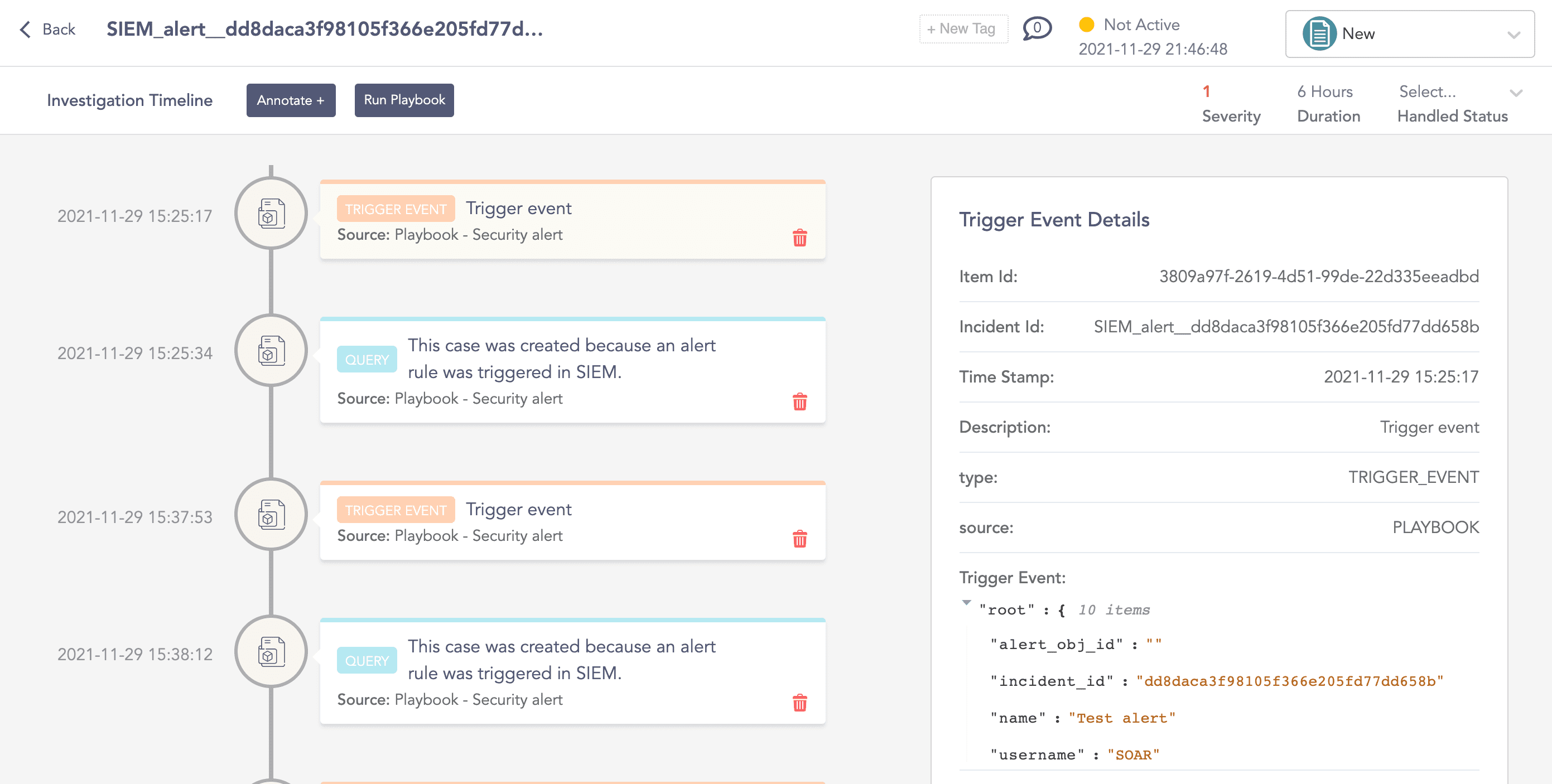
Investigation page
From the Investigation Timeline, you can:
Run the respective playbook.
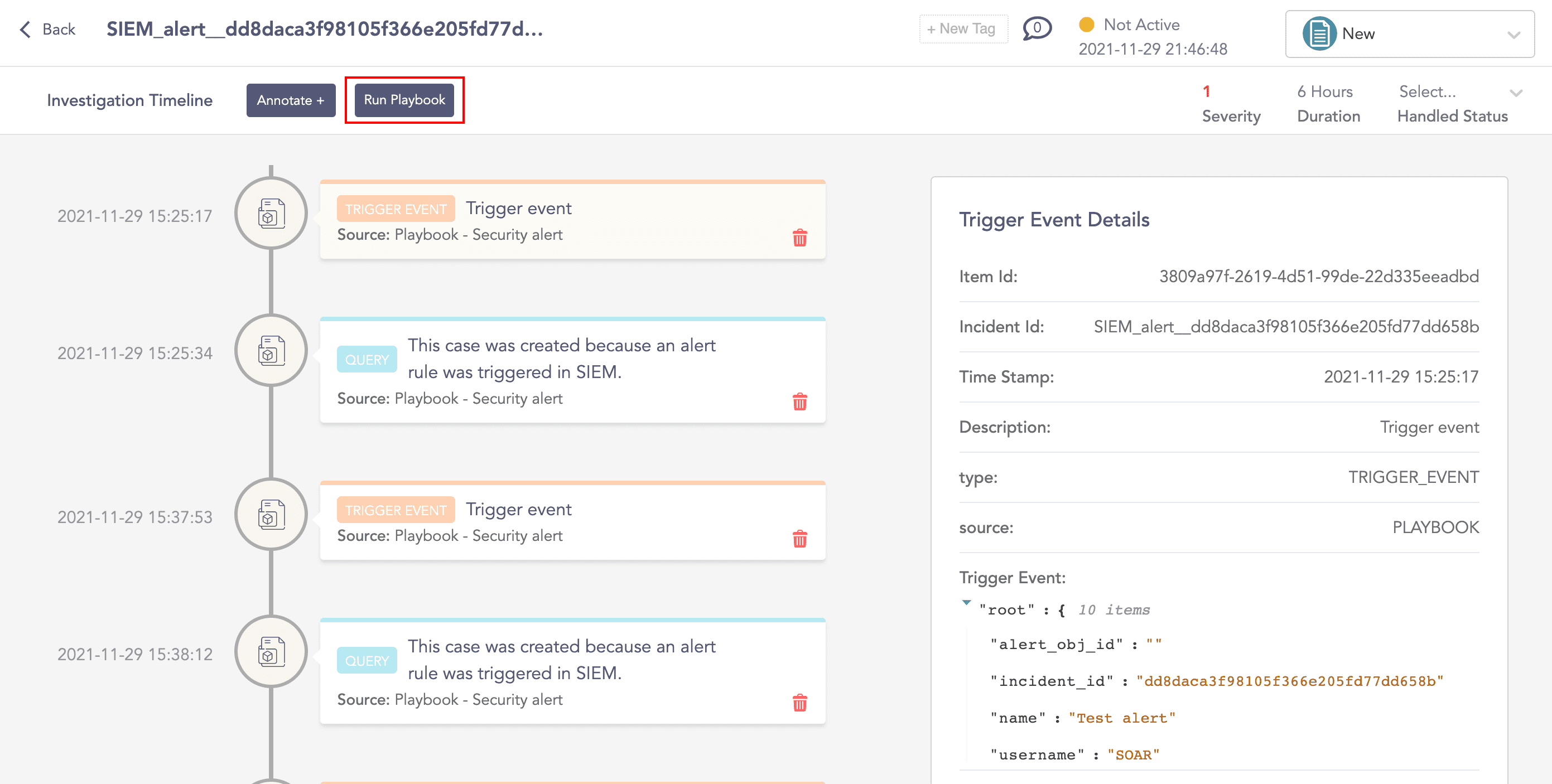
Run playbook
Click an event in the timeline to view its details.
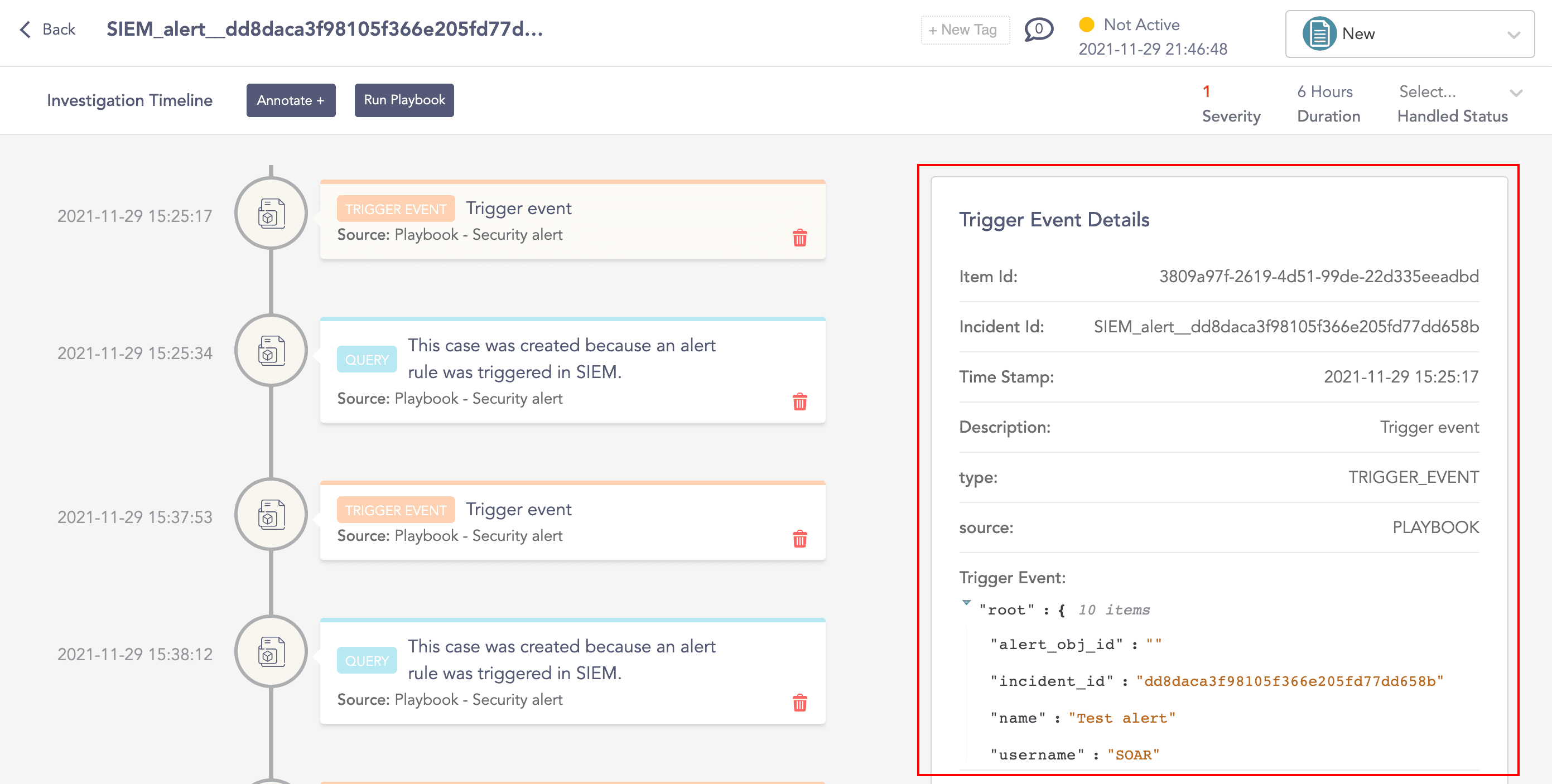
Event details
Add comments to the timeline as Annotations.
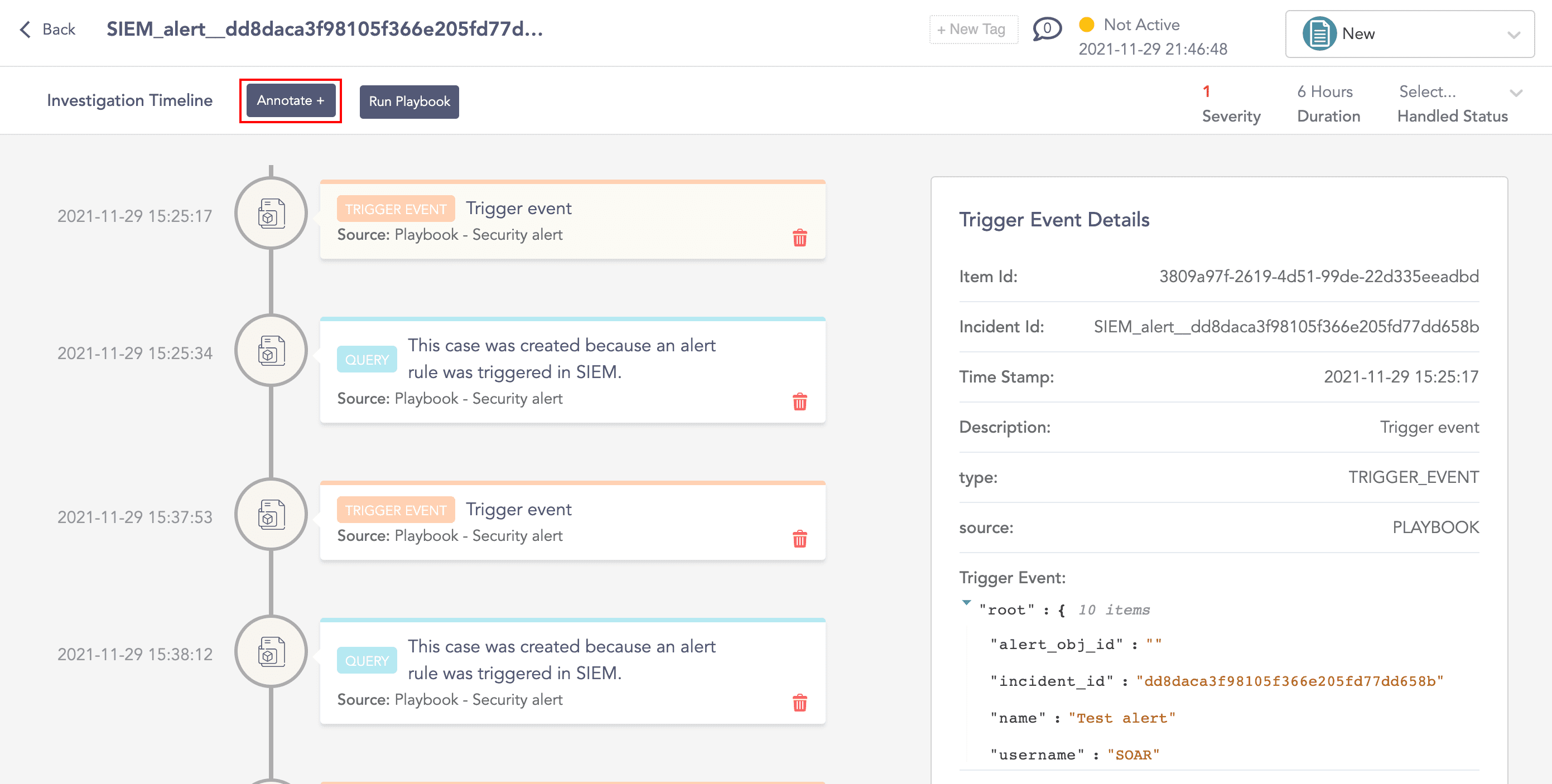
Annotation
Update the Handled Status of the case and choose the User who handled the case.
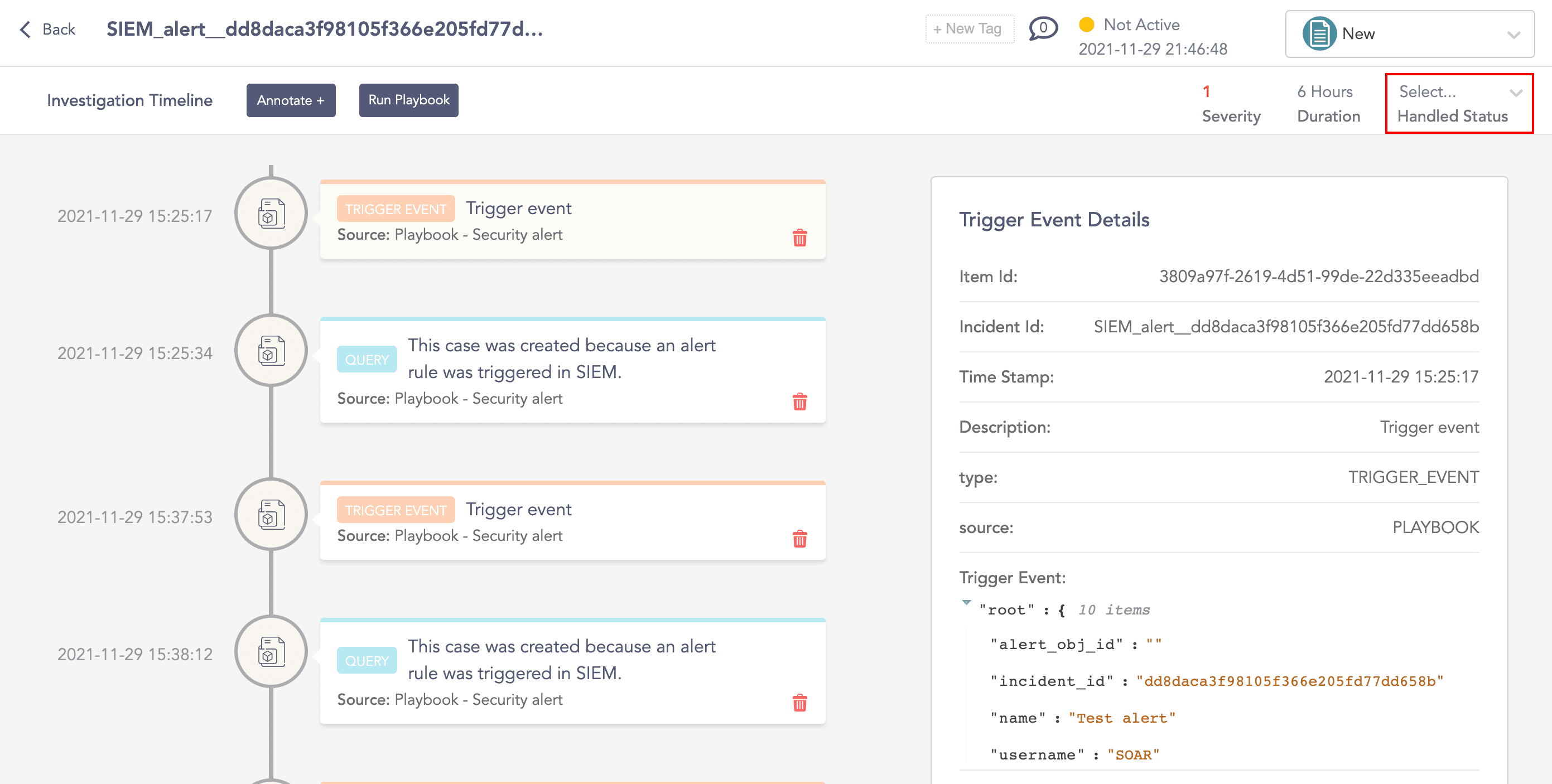
Set Handled Status
Add Tags to the case by clicking the New Tag button.
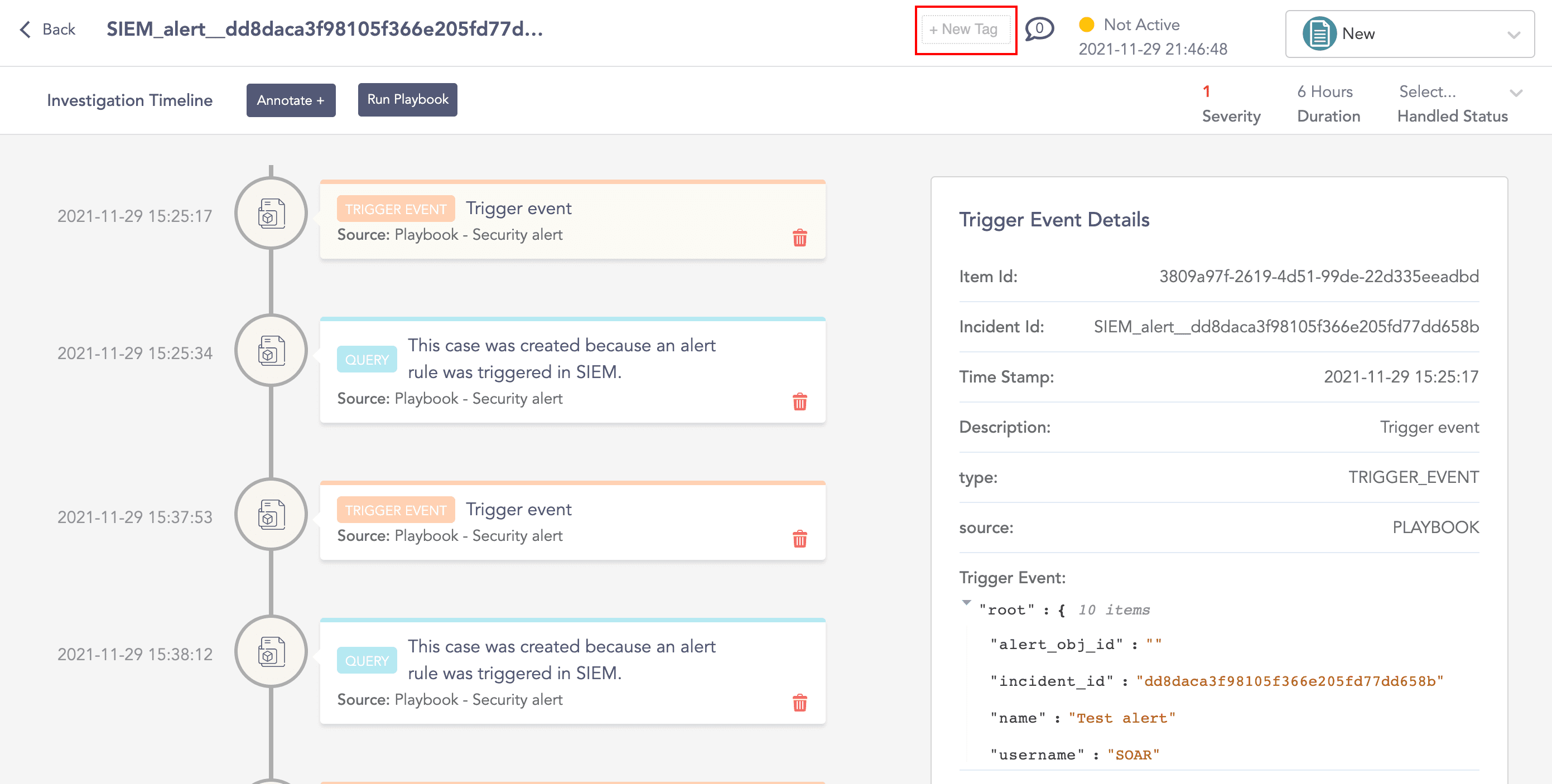
Add Tags
Add Comments to the case.
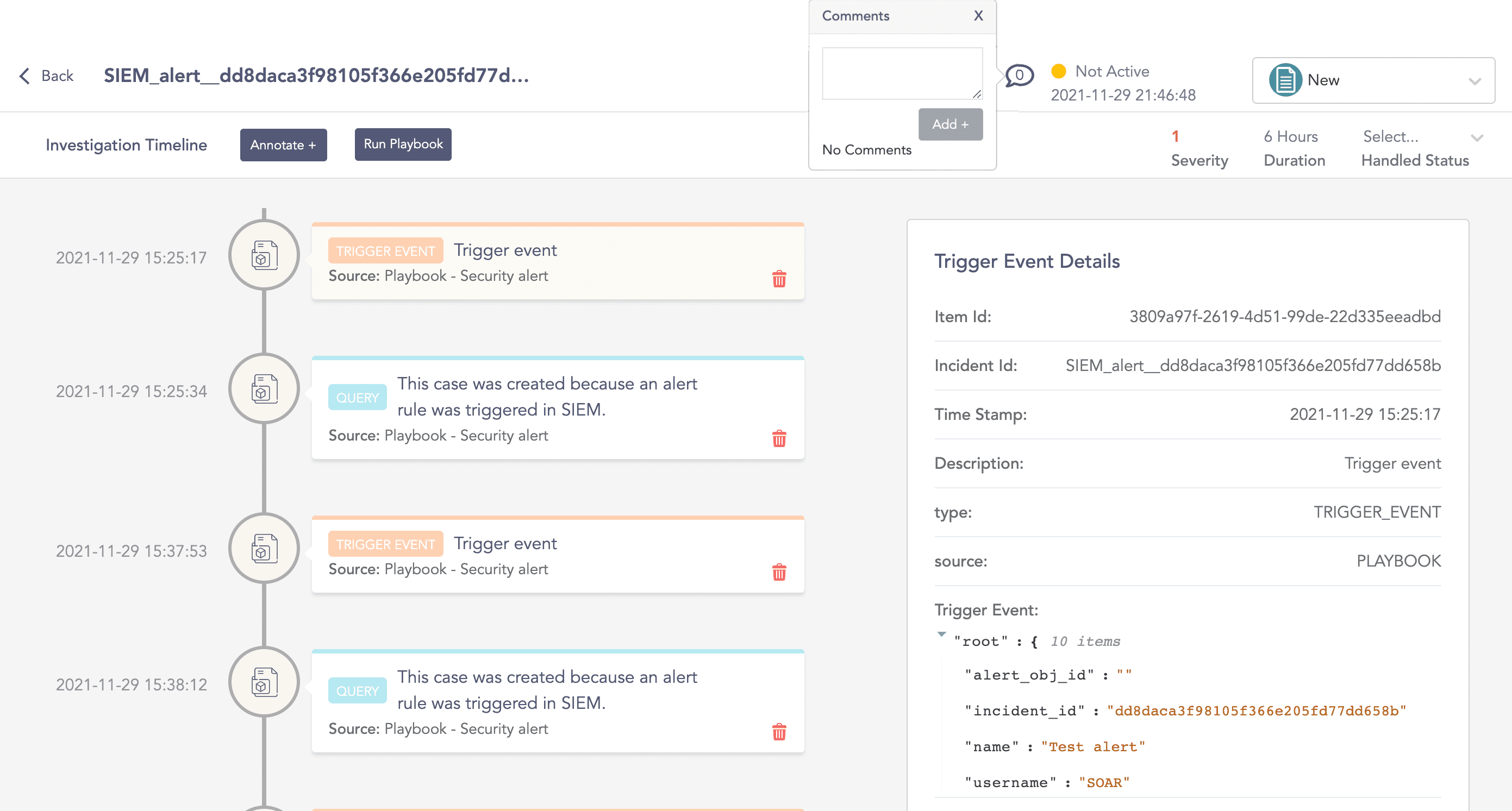
Add Comment
Update the Status of the case.
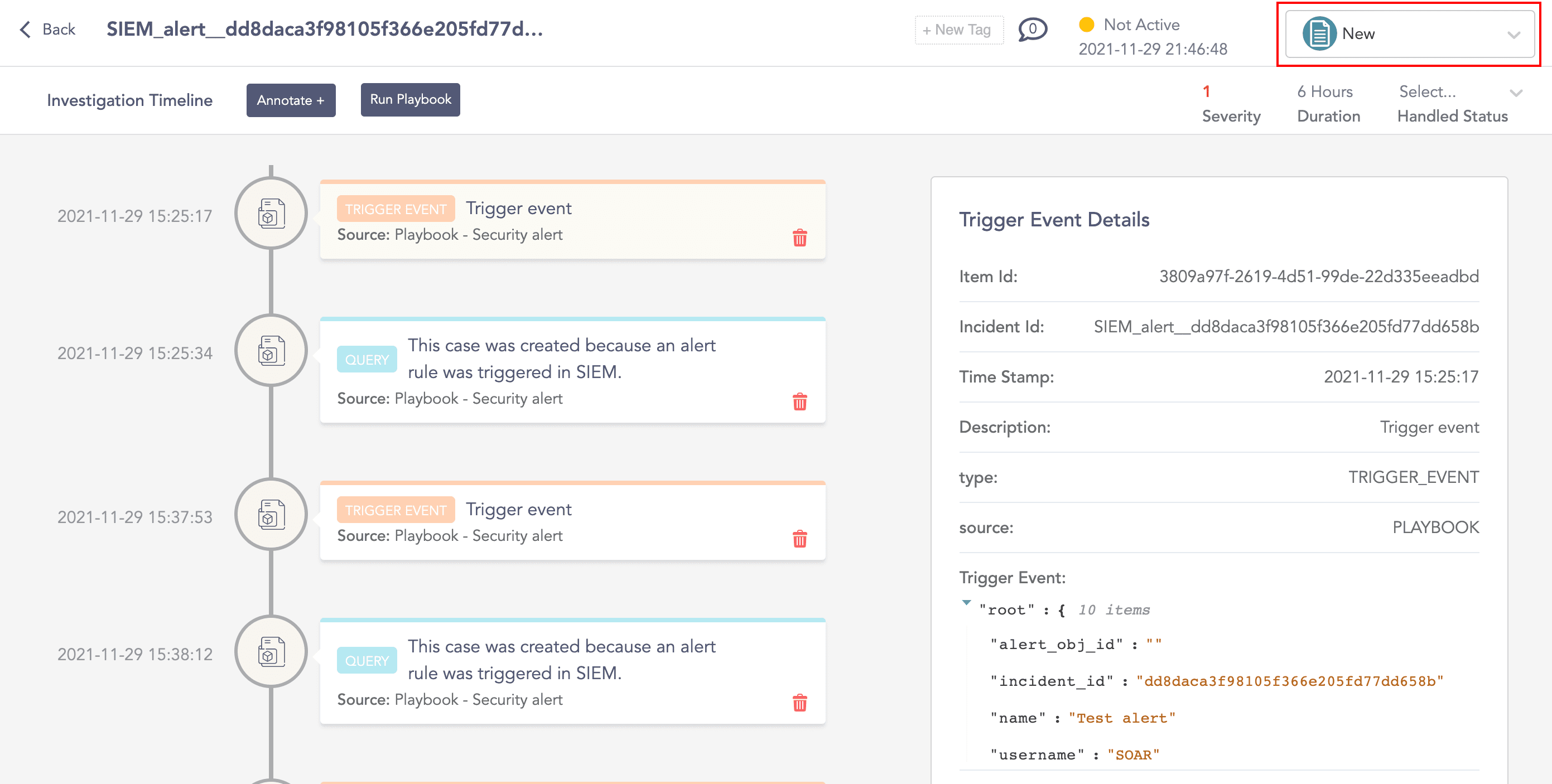
Update Status